
LXNAV Connect
LXNAV Connect – bringing your glider navigation system online
LXNAV Connect is an online service that links LXNAV LX80xx and LX90xx navigation systems with weather providers, cloud storage and other online data sources.
With an internet connection, your instrument can display SkySight and TopMeteo forecasts, show rain radar imagery, download terrain maps and competition tasks, and automatically upload flight logs to WeGlide and other supported services.
In most cases, all you need is a smartphone with mobile data and an enabled Wi-Fi hotspot. There is no need for a separate SIM card in the navigation instrument.
How does LXNAV Connect work?
LXNAV Connect acts as a bridge between your navigation system and external online services. The instrument connects to the internet over Wi-Fi, while LXNAV Connect manages communication with the linked data providers.
A home or airfield Wi-Fi network can also provide internet access. Available features depend on the instrument generation and hardware configuration.
What services does LXNAV Connect offer?
Weather forecasts and rain radar
One of the most useful features for cross-country flying is the ability to display weather information directly as overlays on the moving map, making it easier to compare forecast conditions with your planned task and current position.
SkySight provides forecast layers including thermal strength and height, cumulus cloud base, convergence, wind and wave conditions.
TopMeteo provides soaring forecasts, thermal predictions, cloud distribution, wind, precipitation and other relevant parameters.
Rain Radar displays precipitation areas and historical radar imagery. According to LXNAV, European radar data is available free of charge.
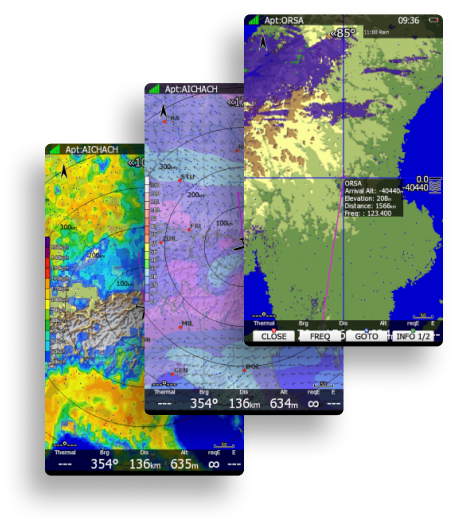
SkySight and TopMeteo require separate accounts and valid subscriptions.
Maps and terrain data
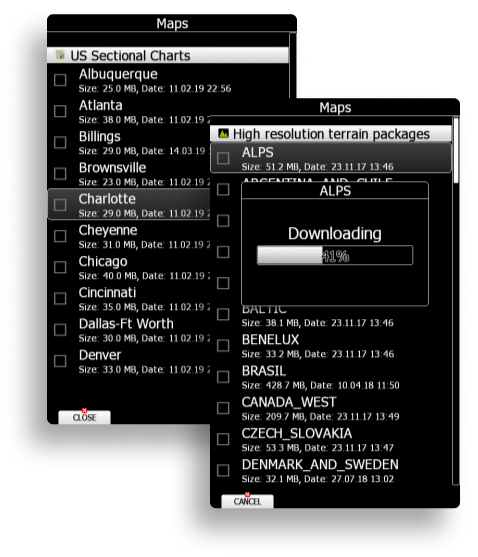
LXNAV Connect allows you to download map data and high-resolution terrain packages. This is particularly useful when preparing to fly in unfamiliar regions, such as the Alps.
US Sectional Charts are also supported. LXNAV terrain packages are provided free of charge.
Flight recordings and automatic uploads
After landing, flight recordings can be transferred online without removing an SD card or connecting a USB drive.
Supported destinations include WeGlide, SeeYou Cloud, SoaringSpot, Google Drive, Dropbox and email, depending on the service and configuration.
Under Automatic flight upload, you can select where the instrument should send flight recordings once the flight has ended and an internet connection becomes available.
Please note: Direct OLC upload and flight claim functionality is no longer supported by LXNAV Connect. IGC files can still be uploaded to OLC separately.
Cloud storage
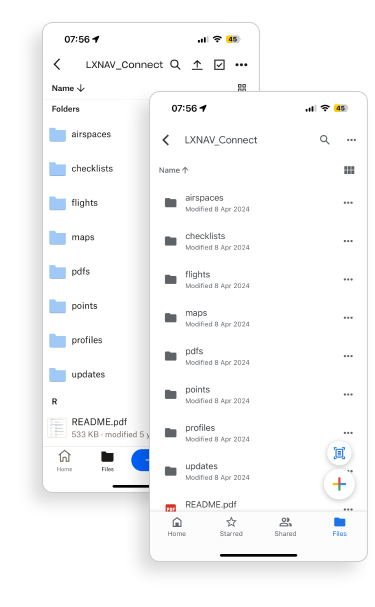
Google Drive and Dropbox integration makes it easy to exchange waypoint files, airspace data, checklists, pilot profiles and flight recordings between your computer and navigation system.
LXNAV Connect creates a dedicated folder in your cloud storage account and only manages files within that folder.
Pilot profile synchronization
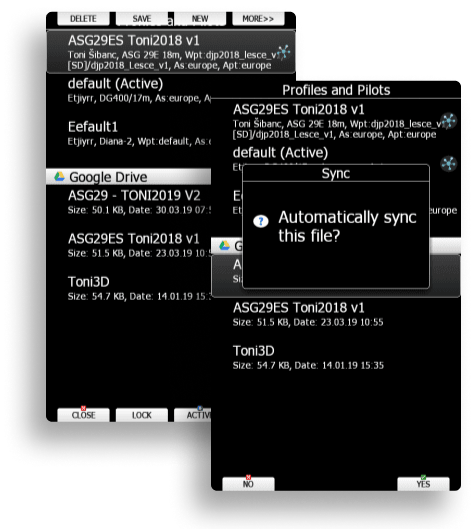
With LX Styler, you can customize navigation pages and pilot profile settings on your computer.
After saving the profile to your connected cloud storage and enabling synchronization, the updated settings can be transferred to your navigation system when an internet connection becomes available.
This is especially useful if you fly with several LXNAV navigation systems and want to keep the same preferred configuration.
Competition tasks and WeGlide
SoaringSpot integration allows pilots to download published competition tasks directly to the instrument and submit flight recordings.
WeGlide integration makes sharing flight recordings easier. Compatible configurations can also access WeGlide Copilot features.
NOTAMs and updates
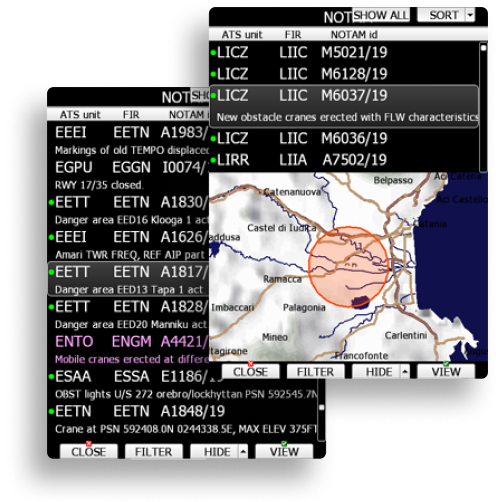
GPS AeroData provides airspace data, NOTAMs and other aviation information. Access requires the appropriate account or subscription.
Wi-Fi connectivity also simplifies navigation database, instrument software and certain connected device updates.
Which services are free?
| Service | Requirements |
|---|---|
| Rain Radar | Free, European coverage |
| LXNAV terrain packages | Free |
| SkySight / TopMeteo | Account and provider subscription |
| GPS AeroData | Separate account and paid access |
| Cloud and flight uploads | Provider accounts; individual limits or fees may apply |
Service availability and terms may change. Suitable instrument hardware and firmware are required to use LXNAV Connect.
Setting up LXNAV Connect – step by step
The following procedure applies to LX80xx/LX90xx systems with supported Wi-Fi hardware. Menu names may vary slightly depending on the firmware version.
1. Connect your instrument to Wi-Fi
Enable mobile data and the personal hotspot on your smartphone.
On your LXNAV instrument, open Setup → Hardware → Network, enable Wi-Fi and search for available networks using LIST / SCAN.
Select your phone's hotspot, use EDIT to enter the password and connect. The instrument can save the network details for future use.
2. Create an LXNAV Connect account
Open connect.lxnav.com on your phone or computer.
Create an LXNAV account or sign in using a supported external account, such as Google, Dropbox or SeeYou.
3. Pair your pilot profile
On the navigation system, open Setup → LXNAV Connect. An unpaired profile will display a QR code and a pairing code identifying the instrument.
Scan the QR code using your smartphone, or open Profiles → Pair profile on the LXNAV Connect website and enter the code manually.
Each pilot profile can be paired with only one LXNAV Connect account at a time. Multiple profiles can be associated with the same account.
4. Add the services you want to use
On the LXNAV Connect website, go to Services and add your preferred providers.
Complete any required sign-in or authorization process for SkySight, TopMeteo, cloud storage and other third-party services.
Once synchronized, available services will also appear in your instrument's LXNAV Connect menu.
5. Configure weather and automatic uploads
To display weather overlays, open Setup → Graphics → Weather Layers. Choose the provider, weather layer, opacity and forecast time settings.
Under LXNAV Connect → Automatic flight upload, select the services or email addresses that should receive your flight recordings.
Your navigation system is now ready to access the enabled services whenever an internet connection is available.
Using LXNAV Connect in everyday flying
Before take-off – prepare at the airfield
Connect to your hotspot, update the required data, download weather layers and retrieve the competition task from SoaringSpot if needed. Check the forecast validity time and data currency.
In flight – additional weather information
Use rain radar, available satellite imagery and forecast layers on your navigation pages. Previously downloaded data may remain temporarily available when the internet connection is lost, but it will no longer be updated.
After landing – send your flight recording
Once recording has finished and internet access is restored, Connect can automatically forward the IGC file to your selected destinations. Manual uploads are also available from the instrument's logbook.
Compatibility by instrument generation
Available LXNAV Connect features depend on the LX80xx/LX90xx hardware generation, Wi-Fi module and firmware version.
Please note: LX8000, LX9000 and LX9070 are instrument model names, not hardware generations. The same model may exist in several generations.
| Feature | GEN1 | GEN2 | GEN3 | GEN4 | GEN5 |
|---|---|---|---|---|---|
| LXNAV Connect | No | Limited | Yes* | Yes | Yes |
| New Wi-Fi adapter availability according to LXNAV | No | No | No | Yes | Yes |
| Device and database updates | No | Yes* | Yes* | Yes | Yes |
| Rain Radar | No | Yes* | Yes* | Yes | Yes |
| SkySight / TopMeteo | No | No | Yes* | Yes | Yes |
| IGC flight uploads | No | Yes* | Yes* | Yes | Yes |
| SeeYou Cloud | No | Yes* | Yes* | Yes | Yes |
| Google Drive | No | No | Yes* | Yes | Yes |
| High-resolution terrain packages | No | No | Yes* | Yes | Yes |
| GPS AeroData | No | Yes* | Yes* | Yes | Yes |
* Requires compatible Wi-Fi hardware and suitable firmware. Certain older instruments may need a hardware upgrade. Feature compatibility does not imply an active account or subscription.
New adapter availability follows the manufacturer's generation chart. Older GEN2 and GEN3 instruments may still have previously installed, functioning Wi-Fi modules even though new adapters are no longer normally offered for these generations.
Identifying your instrument generation
GEN1
Original LX8000 generation with distinctive round buttons. Wi-Fi is not supported. Last supported firmware: 5.05.
GEN2
Older instruments with square metal buttons. A limited range of online features is supported. Last supported firmware: 9.02.
GEN3
More powerful hardware supporting advanced Connect features. Early LX9000 GEN3 instruments may require an upgrade to the HF hardware version.
GEN4
Newer hardware platform with a faster processor, PowerFLARM support and rubber proximity buttons.
GEN5
Touchscreen generation available within the LX90xx series.
Not sure which generation you have? Check the instrument generation and serial number before purchasing Wi-Fi hardware.
Frequently asked questions
Does LXNAV Connect work offline?
An internet connection is required to download and upload information. Previously downloaded weather layers may remain available temporarily, but they will not be refreshed without internet access.
Do I need a SIM card in my navigation system?
No. The instrument connects to a Wi-Fi network, typically your smartphone's personal hotspot. A compatible Wi-Fi module is required.
Can several pilots use one LXNAV Connect account?
Several profiles can be paired with one account. In club gliders, however, separate pilot profiles are recommended to prevent other users from accessing your linked services.
Can I add Connect to an older LX9000?
It depends on the instrument generation and hardware configuration. Some older units support Wi-Fi but have limited Connect functionality. Check the generation and serial number before planning an upgrade.
How can I check whether weather data has downloaded?
Open LXNAV Connect → Cache to inspect the download status of weather layers. An available service does not necessarily mean all requested data has finished downloading.
Does Connect work in a two-seat glider?
Yes. For independent internet connectivity, each front and rear display unit must have its own Wi-Fi module.
Need help getting connected?
Tell us your LXNAV instrument model, generation or serial number, and which services you would like to use. We can help you check compatibility and the required Wi-Fi equipment.
Contact OskarKilo ↗The contact page will open in a new tab.
Further information and guides
Online weather information, forecasts, airspace data and NOTAMs do not replace official pre-flight briefing. Internet connectivity may not be available during flight.